
Showing all 9 results
-
Cybersecurity & Encrypted Devices
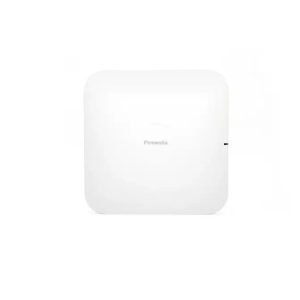
Firewalla Access Point 7 Ceiling: Enabling Zero Trust Network Security with Wi-Fi 7 and Firewalla
Email for a quote Email us for a quoteEmail us and we'll reply with a quote, usually within one business day. -
Cybersecurity & Encrypted Devices
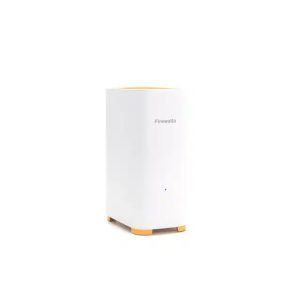
Firewalla Access Point 7: Enabling Zero Trust Network Security with Wi-Fi 7 and Firewalla
Email for a quote Email us for a quoteEmail us and we'll reply with a quote, usually within one business day. -
Cybersecurity & Encrypted Devices
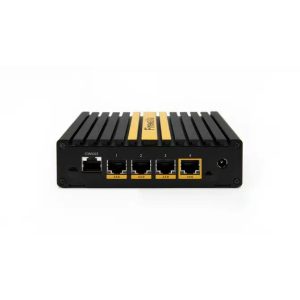
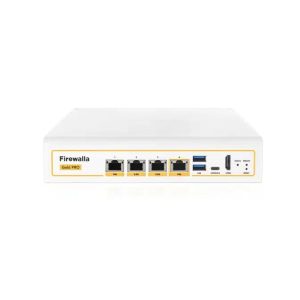
Firewalla Gold Plus: 2.5G Cyber Security Firewall & Router Protecting Your Family and Business ()
Email for a quote Email us for a quoteEmail us and we'll reply with a quote, usually within one business day. -
Cybersecurity & Encrypted Devices
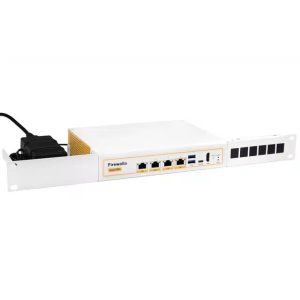
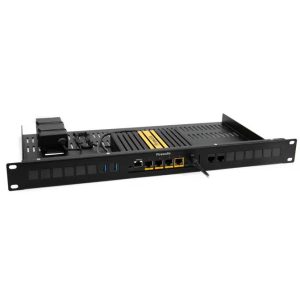
Firewalla Gold Pro Rack Mount
Email for a quote Email us for a quoteEmail us and we'll reply with a quote, usually within one business day. -
Cybersecurity & Encrypted Devices
Firewalla Gold Pro: 10G Cyber Security Firewall & Router Protecting Your Family and Business
Email for a quote Email us for a quoteEmail us and we'll reply with a quote, usually within one business day. -
Cybersecurity & Encrypted Devices
Firewalla Gold Rack Mount
Email for a quote Email us for a quoteEmail us and we'll reply with a quote, usually within one business day. -
Cybersecurity & Encrypted Devices
Firewalla Gold SE: Multi-Gigabit Cyber Security Firewall & Router Protecting Your Family and Business ()
Email for a quote Email us for a quoteEmail us and we'll reply with a quote, usually within one business day. -
Cybersecurity & Encrypted Devices
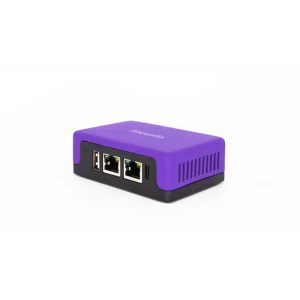
Firewalla Purple: Gigabit Cyber Security Firewall & Router with WiFi Protecting Your Family and Business ()
Email for a quote Email us for a quoteEmail us and we'll reply with a quote, usually within one business day. -
Cybersecurity & Encrypted Devices
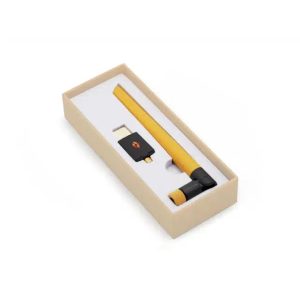
Firewalla Wi-Fi SD
Email for a quote Email us for a quoteEmail us and we'll reply with a quote, usually within one business day.
Buyer’s guide
How to Choose a Firewall, Router or Access Point
Most products in this category are Firewalla firewall-routers, Wi-Fi 7 access points and related accessories. The right choice depends less on the product name and more on your internet connection, the size of your space and how many devices you need to protect.
Start with three questions. How fast is the internet service you actually pay for? How many people and devices connect, including cameras, TVs, printers and smart-home gear? And where will the equipment live: on a shelf, in a closet or in a rack? The answers usually narrow the list to one or two models.
Gigabit connections
Firewalla Purple is listed as a gigabit firewall and router with Wi-Fi, which makes it a compact option for apartments, small homes and home offices where a single box handling routing, protection and wireless is convenient.
Multi-gigabit connections
Firewalla Gold SE is listed as multi-gigabit, and Gold Plus as 2.5G. These suit households and small offices with faster service or heavier internal traffic between devices.
High-throughput networks
Firewalla Gold Pro is listed as a 10G firewall and router. It is aimed at larger homes, offices or labs where speed between segments and to the internet is a priority.
Wireless coverage
Firewalla Access Point 7 and Access Point 7 Ceiling add Wi-Fi 7 coverage. The ceiling model suits central mounting in offices and open floor plans; the standard model suits shelf or wall placement.
Rack installations
The Gold Rack Mount and Gold Pro Rack Mount let you install a firewall neatly in a network rack alongside switches and patch panels.
Storage accessory
The Firewalla Wi-Fi SD is a low-cost accessory in the lineup. Check the product page to confirm it fits the specific model you own before ordering.
Illustrative scenarios
For example, a two-person accounting practice working from a converted house might use one firewall-router with Wi-Fi and a separate guest network for clients in the waiting area. A family with a large single-story home, security cameras and several home offices might choose a multi-gigabit firewall with two ceiling access points and a dedicated network for cameras and smart devices. A small business with a server closet might rack-mount a higher-throughput model next to its switch so cabling stays organized and easy to service.
What matters
Specs Worth Comparing and Specs That Mislead
Networking product names are full of numbers. A few of them directly affect your experience; others only matter in specific setups.
| Spec | What it tells you | How to use it |
|---|---|---|
| Port speed (1G, 2.5G, 10G) | The maximum speed a wired connection can carry | Match it to your internet plan and to the fastest devices on your network, with some headroom |
| Throughput with protection on | How fast traffic moves while security features are active | Compare this figure on the product page rather than the raw port speed alone |
| Wi-Fi generation | Which wireless standards the access point supports | Newer standards help most when your phones and laptops also support them |
| Number of ports | How many wired devices or segments you can connect directly | Count wired devices now and plan for growth or add a switch |
| Form factor and mounting | Desktop, ceiling or rack placement | Choose based on where power, cabling and ventilation already exist |
A common mistake is buying for the advertised maximum instead of the real connection. A 10G firewall will not speed up a gigabit internet plan, and a gigabit device can become a bottleneck on a faster one. Another is placing a single wireless device in a corner closet and expecting full coverage; walls, stucco and metal framing all reduce signal, so central placement or an additional access point usually helps more than a faster radio.
For a deeper comparison of the models, read our Firewalla buyer’s guide.
Setup
A Practical Setup Checklist for Home and Small-Office Networks
Security hardware is most useful when it is configured deliberately. These steps apply to most firewall and access point deployments and help you get value from the equipment on day one.
- Inventory your devices. List computers, phones, cameras, TVs, printers, smart speakers and anything else that connects. You cannot protect what you have not identified.
- Secure the admin account. Use a strong, unique password and enable multi-factor authentication for any management app or account that supports it.
- Segment the network. Keep work devices, family devices, guests and smart-home or camera gear on separate networks or groups so a compromised gadget cannot easily reach a laptop with sensitive files.
- Review default rules. Understand what is allowed and blocked out of the box, then tighten rules for devices that do not need broad internet access.
- Turn on alerts you will read. Choose notifications that matter, such as new devices joining or unusual traffic, so important alerts do not get lost in noise.
- Keep everything updated. Apply firmware updates for the firewall, access points and connected devices on a regular schedule.
- Document the setup. Record network names, which devices belong where and who has admin access, and store it securely.
Care and maintenance
Give network equipment ventilation and keep it off the floor and away from heat sources; enclosed closets and garages can run hot during Arizona summers, which shortens the life of electronics. Plug the firewall and modem into a surge protector or battery backup so short outages do not force repeated reboots. Every few months, review the device list, remove anything you no longer recognize or use, confirm updates are current and check that backups of your configuration exist.
Families with high visibility, home offices that handle client data and executives who work from home face added risk. Our guide to securing the executive home network explains how segmentation, monitoring and device hygiene fit together.
Responsible use
Privacy, Lawful Monitoring and When to Hire a Professional
Network security tools can show which devices connect, when and where they send traffic. That visibility is useful for protecting your own network, and it also comes with responsibilities.
Monitor networks you own or administer, and be transparent with the people who use them. Businesses should cover network monitoring in an acceptable-use policy that employees acknowledge. At home, avoid using network tools to secretly read or intercept another adult’s communications. Laws on interception and electronic monitoring vary by state and situation; this is general information, not legal advice, so confirm your plans with counsel.
Hardware alone does not replace expertise. Consider bringing in a professional when:
- You manage a business network that stores customer, patient or financial data and must meet contractual or regulatory security expectations.
- You have multiple sites, remote workers or a mix of cloud services that need consistent policies.
- You see signs of compromise, such as unknown devices, unexpected account logins or ransomware warnings.
- No one on staff has time to review alerts and apply updates consistently.
Our managed network infrastructure service can design and maintain the network, and our managed security services add ongoing monitoring and response. If you suspect an active incident, stop making changes, preserve what you can and contact us online.
FAQ
Cyber Security Products: Buyer Questions
Do I need both a firewall-router and an access point?
Not always. A model with built-in Wi-Fi can cover a smaller space by itself. Larger homes and offices often pair a wired firewall with one or more access points for better coverage and control.
Will a firewall replace antivirus on my computers?
No. A network firewall protects traffic entering and moving across your network, while endpoint protection covers individual devices. They work best together, along with updates and strong passwords.
Can I use my existing modem?
Usually the firewall connects behind the modem or gateway supplied by your internet provider. Check the product documentation and your provider’s settings, since some gateways need to be placed in a bridge or pass-through mode.
Which model fits a small office?
It depends on your internet speed, number of users and whether you need rack mounting. Compare the port speeds in the product names to your plan, then read the product page details. If you are unsure, ask us before ordering.
Should smart cameras and doorbells go on their own network?
That is generally a good practice. Placing cameras, doorbells and other smart-home devices on a separate network limits what they can reach if one is compromised, and makes their traffic easier to review.
What if a device is defective?
Returns are accepted for defective devices. See the refund policy for how to start a claim.
Can you help plan a network before I buy?
Yes. Request a consultation to talk through your layout, devices and security goals.